
Inventory suddenly changed: 120 → 0.
No orders were placed. There is no obvious explanation in your recent dashboard activity. For most merchants, this is an incredibly frustrating operational roadblock.
Where do you even begin looking?
Investigation Checklist
- 11. Review Shopify's native inventory history.
- 22. Check recent staff actions and permissions.
- 33. Review logs of connected inventory sync apps.
- 44. Inspect recent CSV imports for format errors.
- 55. Analyze downstream changes (e.g., fulfillment network).
- 66. Verify current Shopify inventory state before reverting.
Root Causes
Why unexpected inventory changes happen
Inventory discrepancies rarely happen without a trigger. The most common culprits include third-party inventory sync apps overwriting data, flawed CSV imports, accidental staff actions, multi-location fulfillment adjustments, API integration edge cases, and missing webhooks.
A third-party ERP syncs at midnight, accidentally interpreting a null value as 0, wiping out the stock of your best-selling SKU.The hardest part isn't fixing the inventory
Restoring stock is easy. The hard part is answering critical operational questions: What exactly changed? Who changed it? When did it happen? And most importantly, is it safe to restore the inventory without breaking downstream systems?
Step-by-Step Fix Guide
Review Inventory History
Start by checking Shopify's native adjustment history. Look at the specific variant that experienced the change. Note the exact timestamp when the stock dropped.
- Look for the 'Adjusted by' field to see if it was a user or an app.
Check Staff Actions
If the adjustment is tied to a staff member, check with them immediately. Accidental clicks or bulk edits often go unnoticed until stock levels flatline.
Review Inventory Sync Apps
Check the sync logs of your ERP, warehouse management system (WMS), or dropshipping apps. App synchronization errors are the leading cause of massive stock wipes.
Inspect Imports
If you or your team recently ran a CSV import to update pricing or tags, verify that the 'Inventory Qty' column wasn't accidentally populated with zeroes or nulls.
Verify Current State
Before changing the stock back, ensure that no recent real orders have come in during the downtime, and that syncing it back won't trigger another app to override it again.
Why merchants need incident response
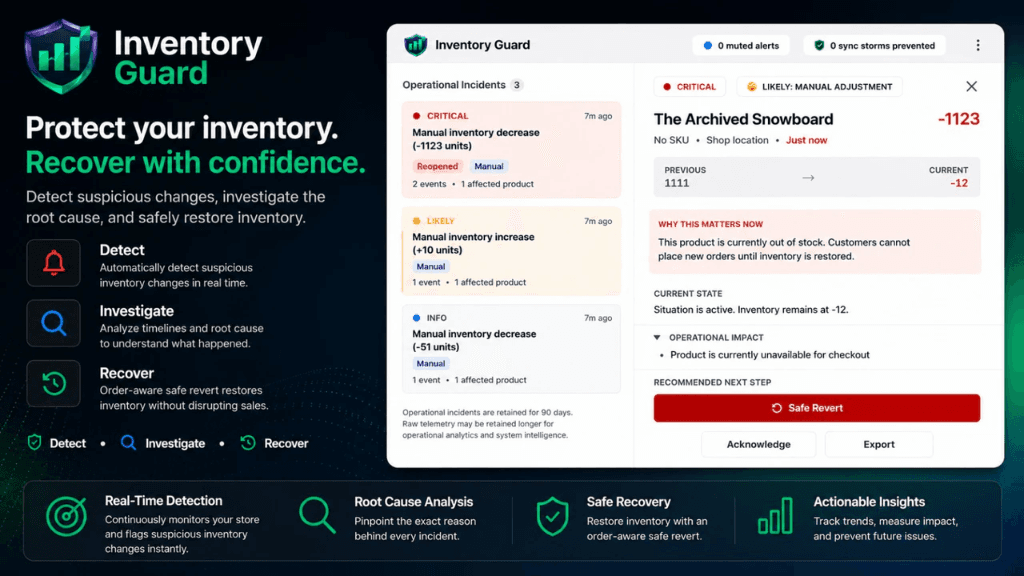
Inventory Guard is built specifically for inventory incident response. It helps merchants detect suspicious inventory changes, investigate incidents, and recover inventory safely.
Get Inventory GuardRelated Errors
Prevention Strategy
- Limit staff access to inventory adjustments.
- Isolate third-party apps to specific locations.
- Adopt an Inventory Incident Response strategy rather than just focusing on forecasting.
Still Stuck With This Issue?
Send your exact error message or deployment issue. I'll respond with a targeted fix.
Need a Deeper Fix?
Describe your full project issue below and I'll get back to you with a targeted fix.